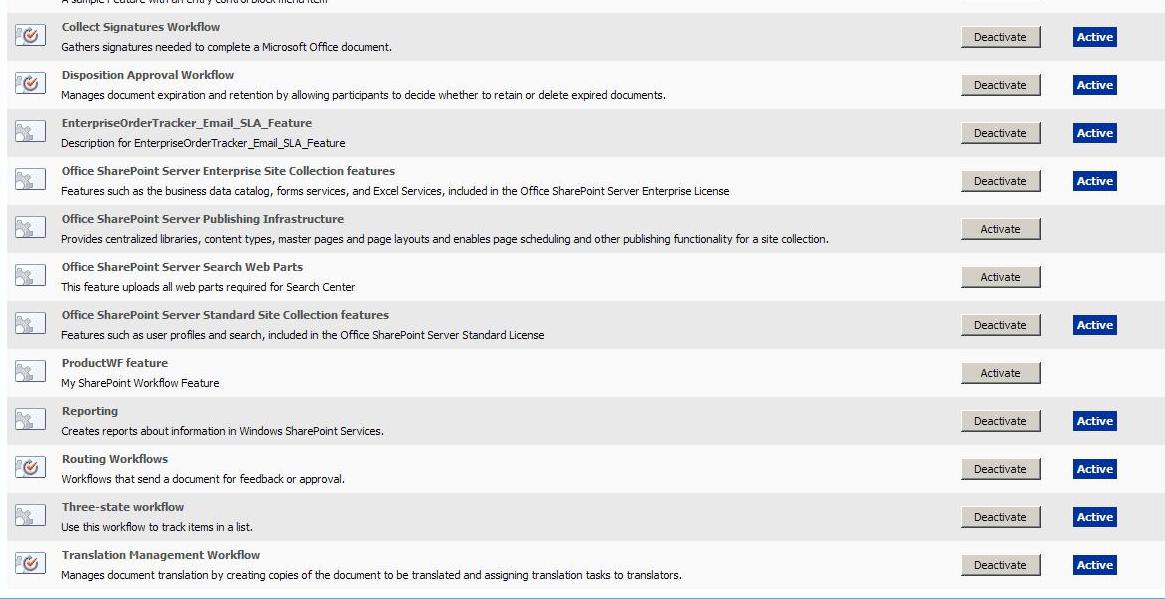
To enable the SharePoint Server Publishing Infrastructure feature for a site collection
a. On the Site Actions menu, point to Site Settings, and then click Modify All Site Settings.
b. If you are not at the root of your site, under Site Collection Administration, click Go to top level site settings.
c. On the Site Settings page, under Site Collection Administration, click Site collection features.
d. On the Site Collection Features page, next to Office SharePoint Server Publishing Infrastructure, click Activate.


To enable the SharePoint Server Publishing feature for a site
a) On the Site Actions menu, point to Site Settings, and then click Modify All Site Settings.
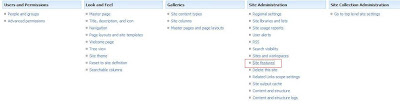
b) On the Site Settings page, in the Site Administration section, click Site features.
c) Next to Office SharePoint Server Publishing, click Activate.

a. On the Site Actions menu, point to Site Settings, and then click Modify All Site Settings.
b. If you are not at the root of your site, under Site Collection Administration, click Go to top level site settings.
c. On the Site Settings page, under Site Collection Administration, click Site collection features.
d. On the Site Collection Features page, next to Office SharePoint Server Publishing Infrastructure, click Activate.


To enable the SharePoint Server Publishing feature for a site
a) On the Site Actions menu, point to Site Settings, and then click Modify All Site Settings.
b) On the Site Settings page, in the Site Administration section, click Site features.
c) Next to Office SharePoint Server Publishing, click Activate.