Showing posts with label sharepoint 2010. Show all posts

May 26, 2013

Code blocks are not allowed in this file.

In Moss 2007 or SharePoint 2010, most of the times we need to create the custom master pages. In order to perform certain actions/functions, we need to insert code within those master pages.

Main problem comes into arena, when we try to use upload that master page into the master page gallery or copying into the file system, and use as system master page or site master page. Since the custom master page contains code with in it, so we used to get the below screen.
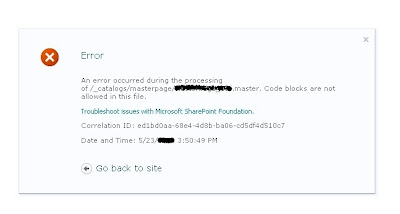
In order to solve this problem, we need to make entries into the corresponding web.config file by following the below steps.

1) Go to corresponding web.config file location which is located at the below location ( under c drive)


2) Open the web.config file , and under the <SafeMode><PageParserPaths> tag make the below entries.

< PageParserPath VirtualPath="/_catalogs/masterpage/*" CompilationMode="Always" AllowServerSideScript="true" IncludeSubFolders="true"/>


VirtualPath attribute should contains location where the master page is located. "/*" at the end of the /_catalogs/masterpage" in the virtual path attribute indicates to also include the subfolders.

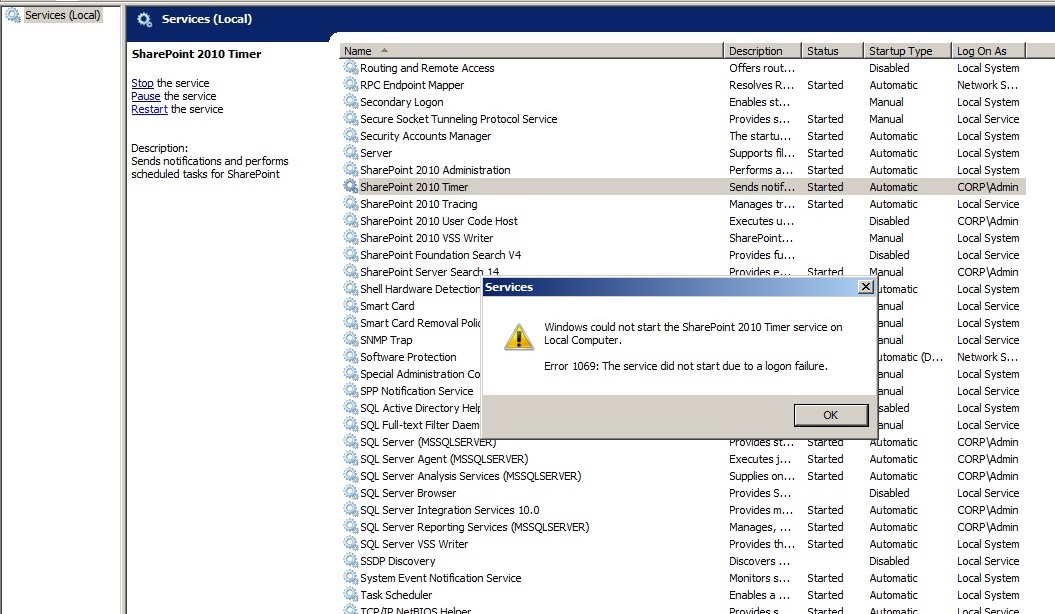
Window could not start the SharePoint 2010 Timer service on Local Computer.

In SharePoint 2010, while starting the SharePoint 2010 Timer service, we get Error 1069 : The service did not start due to a logon failure like the below screen.


The main cause of this problem is that password of the account under which the SharePoint 2010 Timer service is running has been changed. So, we need to update this password in SharePoint 2010 Timer properties.

Steps to update password for timer service

1) Right click the SharePoint 2010 Timer service > properties

2) Click on Log On tab and enter password under This account option.


3) Click apply > Ok > restart the SharePoint 2010 Timer service.


May 19, 2013

This page allows a limit of 200 controls, and that limit has been exceeded.

In Moss/Sharepoint, some while playing with placeholders in the master pages we face the error like the below screen.


The above screen shows that the number of placeholders that can be included in a master page has been exceeded.

Solution

The solution for the above problem is that either
1) To remove placeholders from the master page or
2) (Best One) Increase the value of the MaxControls attribute in the web.config of the corresponding web application as highlighted below.


April 17, 2013

Align inner div at center of outer div

While development you must have noticed that <div> tags are used more frequently in all programming languages. So, it is easier to align one <table><tr><td> at center of anothet <table><tr><td>.

But to align, one div at center of another div, we can use style's margin attribute like below.

<Div style="width:100%">
       <Div style="width:50%;margin:0 auto">
            Inner div at center of outer div
       </Div>
</Div>

November 4, 2012

Activating Publishing Infrastructure Feature

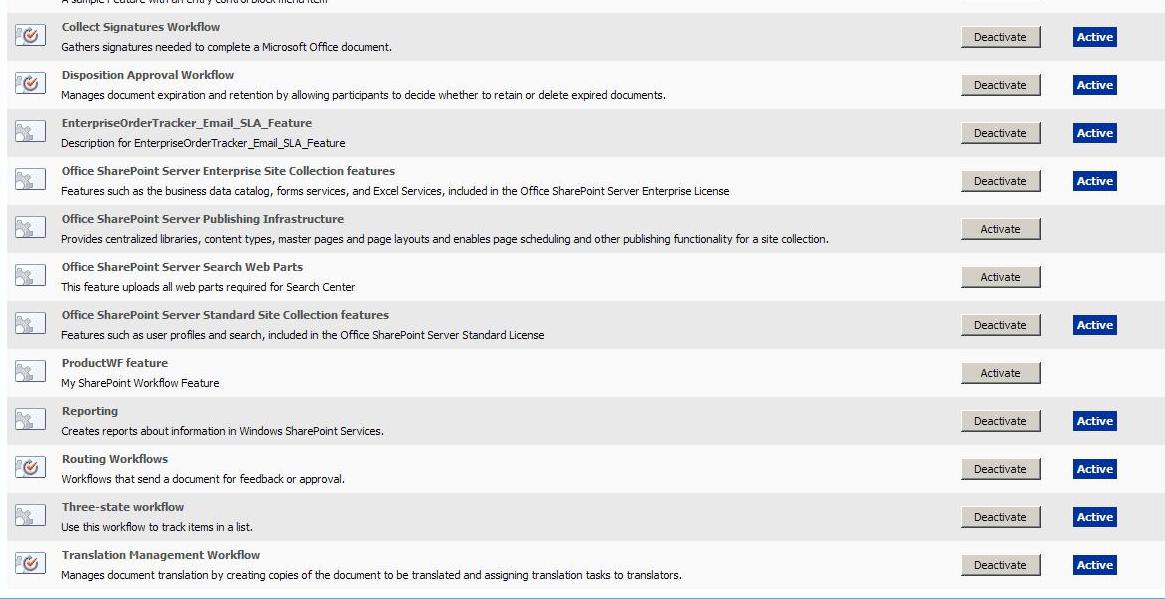
To make a site publishing type, we need to activate "Office SharePoint Server Publishing Infrastructure". Sometimes, activating Office SharePoint Server Publishing Infrastructure feature on a site collection throws error. There are two ways to activate the same feature. 

1) Clicking on Activate button in feature gallery and
2) By using stsadm commands.

To activate  publishing infrastructure feature through commands, use the below commands:

stsadm -o activatefeature -filename publishing\feature.xml -url http://sitecollectionurl -force

stsadm -o activatefeature -filename publishingresources\feature.xml -url
http://sitecollectionurl -force

stsadm -o activatefeature -filename publishingSite\feature.xml -url
http://sitecollectionurl -force

stsadm -o activatefeature -filename publishingweb\feature.xml -url
http://sitecollectionurl -force

stsadm -o activatefeature -filename publishinglayouts\feature.xml -url
http://sitecollectionurl -force

stsadm -o activatefeature -filename navigation\feature.xml -url
http://sitecollectionurl -force


May 9, 2012

Creating Site Content Types in Moss 2007

Following are the steps to create content types in moss 2007.

• From any team site, on the Site Actions menu, click Site Settings.
                                                 OR
• From any portal area, click Site Actions, point to Site Settings, and then click Modify All Site Settings.
• On the Site Settings page, under Site Collection Administration, click Go to top level site settings.
• Under Galleries, click Site content types.
• On the Site Content Type Gallery page, on the menu bar, click Create.


• In the Name box, type the name for this content type. This name will appear in the Content Types list when we will create the page layout.
• In the Description box, type a description for this content type
• In the Select parent content type from list, click Publishing Content Types.
• In the Parent Content Type list, click Page.
• Under Put this site content type into, click Existing group, and then click Page Layout Content Types in the list.


Start workflow to approve content on Publishing sites in Moss 2007

a.    Click on View All Site Content , then click on Pages Document Library
b.    Select Settings on Pages document Library then Document Library Settings
c.    Under Permission and Management click Workflow Settings and do the following changes.

  • Select Approval from workflow
  • Enter Workflow Name as HRPagesApproval
  • Check Start this workflow when a new item is created and start this workflow when an item is changed and click next.
  • Enter the Name of the person who will approve the newly created pages
  • Under complete this workflow, select Document is Rejected.


Enable the Content Approval in Publishing sites in Moss 2007

To Enable the Content Approval for the new pages in Pages Document library in Sharepoint publishing sites.
 

a. Click on View All Site Content , then click on Pages Document Library
b. Select Settings on Pages document Library then Document Library Settings
c. Under General Setting click Versioning Settings and do the following changes.


Creating Sharepoint Groups in Moss 2007

Group can be created at the site collection level. The following example will create group with Read only permission.

1)  On the Site Actions menu, point to Site Settings.
2)  On the Site Settings page, under Users and Permissions, click People and groups.
3)  On the People and Groups page, Click New > New Group.
4)  On Next page, Enter Group Name, Group Owner Name and select Read from the Permission Level.


Creating Custom Permission Level in Moss 2007

Custom permission Level can be created at the site collection level with default rights/options or by creating own rules. The following example shows creating custom permission level using default Contributor permission level.

•    Go to Site Actions > Site Settings > Modify All site Settings > Advanced Permission under User and Permission heading.
•    On the next page , click settings > Permission Levels.
•    On permission Levels page, click Contribute.
•    On bottom of page, click copy permission level. On the copy permission level “Contribute”, enter name of custom permission level and description.
•    Clicks create.


Publishing Feature

To enable the SharePoint Server Publishing Infrastructure feature for a site collection
a. On the Site Actions menu, point to Site Settings, and then click Modify All Site Settings.
b. If you are not at the root of your site, under Site Collection Administration, click Go to top level site settings.
c. On the Site Settings page, under Site Collection Administration, click Site collection features.
d. On the Site Collection Features page, next to Office SharePoint Server Publishing Infrastructure, click Activate.


To enable the SharePoint Server Publishing feature for a site
a)    On the Site Actions menu, point to Site Settings, and then click Modify All Site Settings.
b)    On the Site Settings page, in the Site Administration section, click Site features.
c)    Next to Office SharePoint Server Publishing, click Activate.


Cannot connect to the configuration database Error in MOSS 2007

Sometimes in sharepoint, while opening the sites we got the "Cannot connect to configuration database" error. The below screen appears,


The problem occurs because the Sharepoint_config database is put to the SUSPECT mode in Sql Server. The following can be checked by logging to the SQL Server 2005 Management Studio. Expand Server > Databases > SharePoint_Config. A red mark next to the SharePoint_Config database appears with "Suspect" word.

To solve this problem, we have to follow this approach.

"Suspected" status > "Emergency" status> Multi User Mode > Enable database
(Convert the database to single user mode by going to properties of database >> options >> Restrict Access >> Single Use)


1) The solution to the above problem is to first convert the "SharePoint_Config" database to the "Emergency" mode by using the Following command/query.

alter database "Database_Name" set emergency

2) Convert database to Multi User Mode by using query


ALTER DATABASE Database_Name SET MULTI_USER


(Below command will convert database to Single User Mode)
ALTER DATABASE Database_Name SET single_USER


3) Finally Run below query

EXEC sp_resetstatus '
Database_Name'
GO
ALTER DATABASE
Database_Name SET EMERGENCY
DBCC checkdb('
Database_Name')
ALTER DATABASE
Database_Name SET SINGLE_USER WITH ROLLBACK IMMEDIATE
DBCC CheckDB ('
Database_Name', REPAIR_ALLOW_DATA_LOSS)
ALTER DATABASE
Database_Name SET MULTI_USER


For some seetings to take place (or if you face some errors) try restarting the highlighted sql services.


November 21, 2011

The application attempted to perform an operation not allowed by the security policy. To grant this application the required permission please contac

Sometimes, while executing an application in sharepoint environment, we get the following error.

The application attempted to perform an operation not allowed by the security policy. To grant this application the required permission please contact your system administrator or change the application's trust level in the configuration file. in sharepoint


This problem is basically related with the Trust Level. Just make the following changes in under element of the web.config file of the corresponding web application.


Change from,
< system.web >
< trust level="WSS_Minimal" originUrl="" / >

to in web.config

< system.web >

< trust level="Full" originUrl="" / >

Change Text or Image of the MySite Link in Moss 2007

Sometimes the user wants to change the MySite Link text to something else like "My World". In that case, you can do that by making changes to the MySiteLink.ascx file. This MySiteLink.ascx file is located at


C:\Program Files\Common Files\Microsoft Shared\web server extensions\12\TEMPLATE\CONTROLTEMPLATES
Now, open that MySiteLink.ascx file in sharepoint designer and change the following line

< asp:HyperLink id="hlMySite" runat="server" / >

Add visible="false"

The above line will become < asp:HyperLink id="hlMySite" runat="server" visible="false" / >.

Now, finally to change the Mysite text add the following line with the text that you want to display. Here, i want to display "My World"

< asp:HyperLink ID="NewMySiteHyperlink" runat="server" Text="My World" Visible="true" NavigateUrl="http://your mysite Url/_layouts/MySite.aspx"/ >

To display image in place of MySite Text you can use the following line

< asp:HyperLink ID="NewMySiteHyperlink" runat="server" ImageUrl="/_LAYOUTS/ Link to your image file" Text="My World" Visible="true" NavigateUrl="http:// Your MySite Url/_layouts/MySite.aspx"/ >

October 11, 2011

Configuration Error : Web.Config [No Relevant Source Line]

Sometimes , we get the below error while running pages in Moss 2007


Solution : We have to grant the Full Control on the Security tab and for that right click the folder and select Properties.

Or

You have to place your project in the root drive of windows installation.


September 1, 2011

Browsers error in Sharepoint

Sometimes after making changes in Sharepoint website, we started to get the Browsers error in IE. Like the following error:


The solution to remove this error is to delete the App_Browsers folder in _vti_cnf of respective website in Inetpub.

August 21, 2011

In Sharepoint, if you want to hide the quicklaunch bar, then put the page in Edit mode and add a content editor webpart. Click " modify this webpart" from drop down of webpart and select the Source editor and paste the following lines

This code will hide the quick launch from the page . (Make the Content Editor webpart hidden.)

Error installing .Net Framework 3.5 in Sql Server 2012

During installation of Sql Server 2012 on Windows server 2012 or addition of roles and features for SharePoint 2013, the setup wizard will...