March 1, 2014

Windows Server 2012 - VMware windows cannot find the microsoft software license terms.

If you have problem installing Windows Server 2012 on VMware Player with following error message : "windows cannot find the microsoft software license terms", chances are when you first create the virtual machine and you have selected the Installer disc image file (iso) option.

Instead, choose I will install the operating system later. Then set the path of the ISO file in VM -> settings -> CD-DVD... -> Use ISO image file, and boot.

This will run the installer without the error above.

May 26, 2013

Code blocks are not allowed in this file.

In Moss 2007 or SharePoint 2010, most of the times we need to create the custom master pages. In order to perform certain actions/functions, we need to insert code within those master pages.

Main problem comes into arena, when we try to use upload that master page into the master page gallery or copying into the file system, and use as system master page or site master page. Since the custom master page contains code with in it, so we used to get the below screen.

In order to solve this problem, we need to make entries into the corresponding web.config file by following the below steps.

1) Go to corresponding web.config file location which is located at the below location ( under c drive)


2) Open the web.config file , and under the <SafeMode><PageParserPaths> tag make the below entries.

< PageParserPath VirtualPath="/_catalogs/masterpage/*" CompilationMode="Always" AllowServerSideScript="true" IncludeSubFolders="true"/>


VirtualPath attribute should contains location where the master page is located. "/*" at the end of the /_catalogs/masterpage" in the virtual path attribute indicates to also include the subfolders.

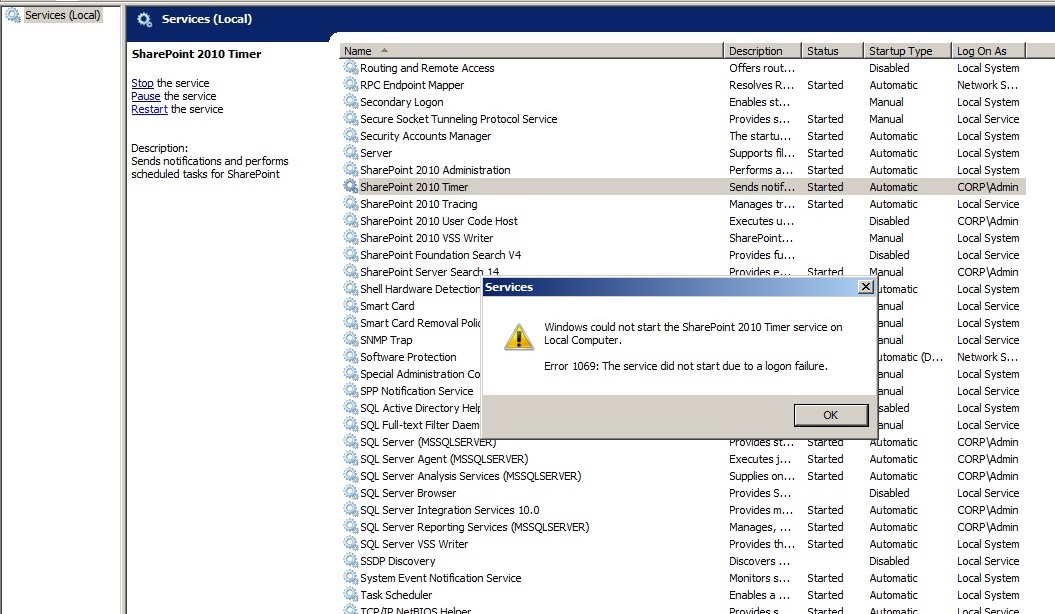
Window could not start the SharePoint 2010 Timer service on Local Computer.

In SharePoint 2010, while starting the SharePoint 2010 Timer service, we get Error 1069 : The service did not start due to a logon failure like the below screen.


The main cause of this problem is that password of the account under which the SharePoint 2010 Timer service is running has been changed. So, we need to update this password in SharePoint 2010 Timer properties.

Steps to update password for timer service

1) Right click the SharePoint 2010 Timer service > properties

2) Click on Log On tab and enter password under This account option.


3) Click apply > Ok > restart the SharePoint 2010 Timer service.


May 19, 2013

This page allows a limit of 200 controls, and that limit has been exceeded.

In Moss/Sharepoint, some while playing with placeholders in the master pages we face the error like the below screen.


The above screen shows that the number of placeholders that can be included in a master page has been exceeded.

Solution

The solution for the above problem is that either
1) To remove placeholders from the master page or
2) (Best One) Increase the value of the MaxControls attribute in the web.config of the corresponding web application as highlighted below.


April 17, 2013

Align inner div at center of outer div

While development you must have noticed that <div> tags are used more frequently in all programming languages. So, it is easier to align one <table><tr><td> at center of anothet <table><tr><td>.

But to align, one div at center of another div, we can use style's margin attribute like below.

<Div style="width:100%">
       <Div style="width:50%;margin:0 auto">
            Inner div at center of outer div
       </Div>
</Div>

November 4, 2012

Activating Publishing Infrastructure Feature

To make a site publishing type, we need to activate "Office SharePoint Server Publishing Infrastructure". Sometimes, activating Office SharePoint Server Publishing Infrastructure feature on a site collection throws error. There are two ways to activate the same feature. 

1) Clicking on Activate button in feature gallery and
2) By using stsadm commands.

To activate  publishing infrastructure feature through commands, use the below commands:

stsadm -o activatefeature -filename publishing\feature.xml -url http://sitecollectionurl -force

stsadm -o activatefeature -filename publishingresources\feature.xml -url
http://sitecollectionurl -force

stsadm -o activatefeature -filename publishingSite\feature.xml -url
http://sitecollectionurl -force

stsadm -o activatefeature -filename publishingweb\feature.xml -url
http://sitecollectionurl -force

stsadm -o activatefeature -filename publishinglayouts\feature.xml -url
http://sitecollectionurl -force

stsadm -o activatefeature -filename navigation\feature.xml -url
http://sitecollectionurl -force


October 15, 2012

Extracting DLL from assembly

Sometimes, based on the requirements , we get into a situation when we want to extract DLL's from assembly. In direct words, it is not possible to drag-drop the DLL's from the assembly folder which is generally located at C:\windows\assembly location.

So, extract the dll from assembly folder, perform these steps

1) Click Start > Run.
2) In Run window, enter "C:\windows\assembly\gac" without quotes and press enter.
3) The window that open, contains dll's in folder, which you can easily copy or drag-drop.


Error installing .Net Framework 3.5 in Sql Server 2012

During installation of Sql Server 2012 on Windows server 2012 or addition of roles and features for SharePoint 2013, the setup wizard will...